What we tested, and what we did not re-verify
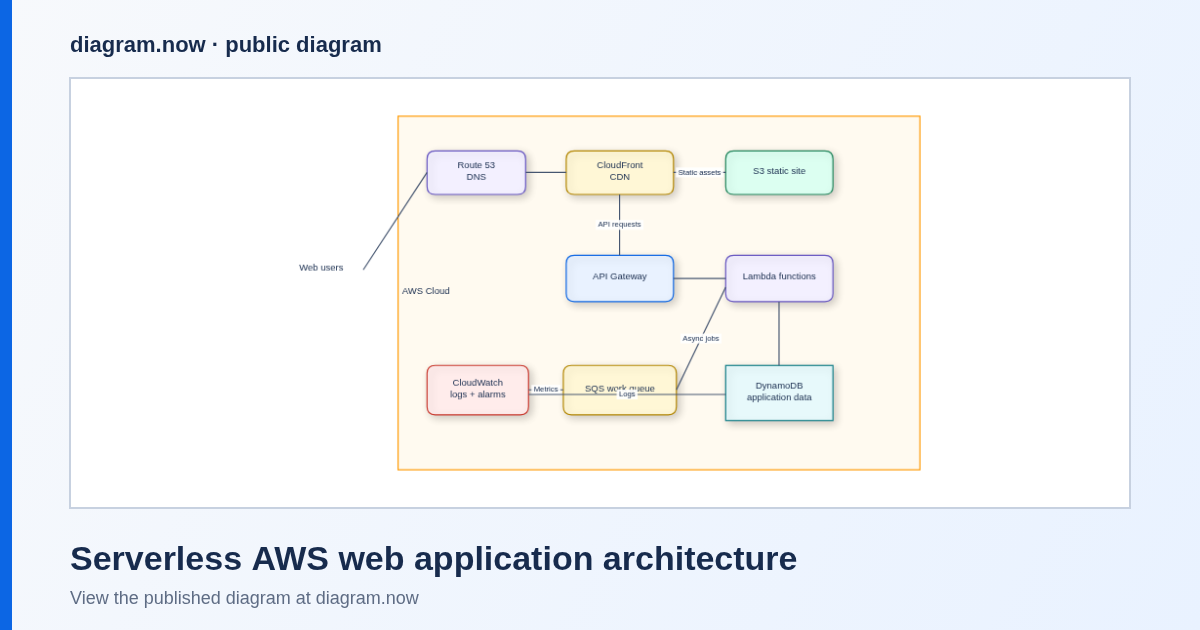
Tested live in the browser on 9 September 2026. Opening the published serverless AWS architecture example and clicking Edit a copy loaded 19 objects: 10 service shapes plus 9 connectors — AWS Cloud, Web users, Route 53 DNS, CloudFront CDN, S3 static site, API Gateway, Lambda functions, DynamoDB application data, SQS work queue, CloudWatch logs + alarms. Renaming, moving, , PNG export and the Publish / Embed / URL dialog all worked from that state.
We ran the whole round trip inside a Confluence site on 27 September 2026, and the diagram came back with it. The install gate is resolved: the administrator of the Atlassian organization behind a Confluence site we control installed the shipping app — listing 523472243, key com.votazz.confluence.diagrams-now, version 3.0.0, $0 for a site that size and no payment method asked — and its macro now appears in the editor’s insert menu as diagram.now, rendering the same editor this guide tests in the browser. We inserted that macro on a test page, drew a shape, gave it a unique label, published from the diagram editor and updated the page. Afterwards Atlassian’s own content API returned the macro with the diagram attached to the page, the reader view drew the labelled shape, and the attachment behind it downloaded back as an editable diagram file with our label still inside it. So the click-path under route 2B below is the one we ran, not one copied from a guide. Two things to keep in mind. Installing is still an organisation-level job: the sign-in we use for these checks is a delegated administrator that can open Confluence administration and sits in the site’s confluence-admins group, and Atlassian refused it on 10 September with “Only site administrators can start trials for paid apps, and unfortunately, you are not one of them.” Budget for the account that administers your Atlassian organization. And what we verified is one diagram published on one page on a site we control at version 3.0.0: that a diagram survives a year of other people’s edits on your production site is a claim this page does not make.
Step 1 — Build the architecture diagram (tested)
Start from a real topology
Open the serverless AWS web application architecture example and click Edit a copy. Or start empty and use , and — a rectangle per service and a big container rectangle for the account or VPC boundary is enough.
Swap in your services
Double-click a shape to rename it (Enter commits, Escape cancels). Delete the boxes you do not run, add the ones you do, and drag from a shape edge to reconnect. Draw the trust boundary you actually have: users and CDN in front of the origin, internal queues and data stores behind it.
Label what reviewers ask about
Region or account names on container shapes, and one short note on the edges that matter (synchronous request, asynchronous job, replication). Colour the failure-critical path instead of colour-coding everything.
Produce the artefact
downloads diagram.diagramly — keep it, it is the editable source. offers Include a copy of my diagram (on by default), which embeds the editable diagram in the PNG so can restore it later — useful when the PNG is what lands in Confluence. SVG and PDF are in the same menu for print-quality docs.
Or produce a link instead of a file
, and open one Publish / Embed / URL dialog: “Generate a self-contained HTML file, an embeddable iframe snippet, or an encoded URL that reopens the current diagram in the published viewer or the editor”, with options for height, light/dark and an edit button. Its own note says “URL exports keep the diagram payload in the URL fragment so nothing is uploaded from this browser”. Copy Markdown / Slack / iframe / GitHub buttons and Publish public page are there too.
Step 2, Route A — image or link on the page (no install)
Documented from our existing guides, not re-run this week. This is the route to use today if you cannot install anything, or your reviewers only ever read the page.
- Attach the exported PNG to the Confluence page and insert it there, or drag the file onto the page while editing; add a caption naming the system and the date.
- Keep
diagram.diagramlyattached next to it (or in your repo) so the next person can edit the source instead of redrawing the picture. - Add the encoded URL or published-page link as “open this diagram in the editor” next to the image, so readers can zoom into real shapes rather than a flat export.
- Accept the trade-off knowingly: when the architecture changes, someone must re-export and re-insert the image. Treat the image as a build artefact of the diagram file, never as the source.
- Treat the self-contained HTML export as a file to host or attach. Confluence Cloud does not render arbitrary pasted HTML, so do not plan around an HTML include unless your site already has a macro for it.
Step 2, Route B — editable inside Confluence (Marketplace app)
Verified end to end on 27 September 2026 on a Confluence site we control: the macro inserted, the embedded editor behaved as described, and the published page came back with the diagram attached and editable (evidence in the box above). The diagram.now listing is a single Confluence macro: the diagram lives on the page, and editing it opens the same editor you have been using in the browser. That is the route that keeps architecture documentation alive after the first rewrite.
Route 2B, the click-path we ran on 27 September 2026
- Get the app onto the site first — an administrator of your Atlassian organization installs diagram.now from the listing. A site with up to 10 users is $0 and the 30-day trial does not ask for a payment method.
- Open the page and click , put the cursor on an empty line and type
/diagram, then pick diagram.now from the insert menu. - The diagram editor opens inside Confluence — the same editor this guide exercises in the browser. Draw and label the architecture you built in step 1.
- Click Publish in the diagram editor’s toolbar, name the diagram when asked, then confirm Publish these changes to the page? The dialog closes and the diagram is in the page body.
- Don’t click outside the editor window before you press Publish. Confluence treats that as cancel, the insert is dropped, and the page is left with nothing where the diagram was. It is the easiest way to lose a drawing.
- Click Update to publish the page, then open it in reading view: the diagram renders there through the app, as the live diagram rather than a flat export of one.
- The diagram lives on the page as an attachment that the macro points at, next to an SVG preview. We read that attachment back through Atlassian’s own API and it was the editable diagram file with our shapes inside, so the file behind the picture is recoverable even outside the macro.
Pricing is per Confluence site, by that site’s user count. From the public listing, US dollars, checked 9 September 2026 (annual billing, volume bands):
| Users on the Confluence site | Annual price | Monthly billing |
|---|---|---|
| 1 – 10 | $0 | $0 |
| 11 – 15 | $142.50 | $0.95 per user / month in the 11–100 band |
| 16 – 25 | $237.50 | |
| 26 – 50 | $475 | |
| 51 – 100 | $950 | |
| 101 – 200 | $1,850 | $0.90 per user / month in the 101–250 band |
The listing also states the app is free up to 10 users and that a 30-day free trial is available for teams of all sizes. Larger sites have further bands. The listing is the source of truth and prices change — check it before you budget, and check whether your site is already covered by an Atlassian Cloud subscription tier that changes the billing path.
What the browser editor does not need: nothing above. The free editor, the examples, the imports and the exports described in step 1 cost nothing and need no install, no account and no trial.
FAQ
Can I move an architecture diagram I already drew?
Yes — import Visio (.vsdx), Lucidchart, Mermaid or SQL into the editor, clean it up, then take either route above. See the AWS example for the shape vocabulary, or the mind-map example if the architecture discussion is still open-ended.
Why not just keep the PNG?
Because the day someone asks “is the queue still SQS?”, a PNG is a redraw. If you can only do one thing today, export a PNG with Include a copy of my diagram ticked and attach it — then the picture you are arguing about can be opened as a diagram again.
Is my architecture information uploaded when I edit?
The browser work happens in your tab. During the tested import runs the browser made zero non-GET requests and contacted zero third-party hosts. A link or public page exists only if you click publish, and an encoded URL keeps the payload in the address-bar fragment rather than on a server.
Does Confluence Data Center work?
That is a different deployment model with its own constraints — read Confluence Data Center diagram migration before planning anything there.
Can somebody do this with us on our own page?
That is what the free 20-minute observed onboarding session is for: bring one architecture diagram and your Confluence site, leave with it on a page. Places are limited and confirmed individually.
Diagram on the page, source still editable
Do the browser work today with no install; decide about the Marketplace app once the diagram is real and people are arguing from it instead of redrawing it.
Currently $0 for Confluence sites with up to 10 users. Bring one real diagram — Visio (.vsdx), Lucidchart, Mermaid or SQL — and we'll help you import it into Confluence in a free one-file migration session. Request migration help.